
How to View and Select Homepage Content
You can view our homepage content options, and then either copy that content to your website yourself or auto-send it to your team. Please keep in mind that once you submit one option to your team, you are not able to select a different option. However, you can always view and copy the homepage options via the Dashboard. Below we'll go over these two options.
Sending homepage content to your team
Step 1: Log into the Dashboard by clicking on the link here.
Step 2: Once logged in, select the "Send us homepage content" option and click on either "Write my own content" or "Use homepage generator"
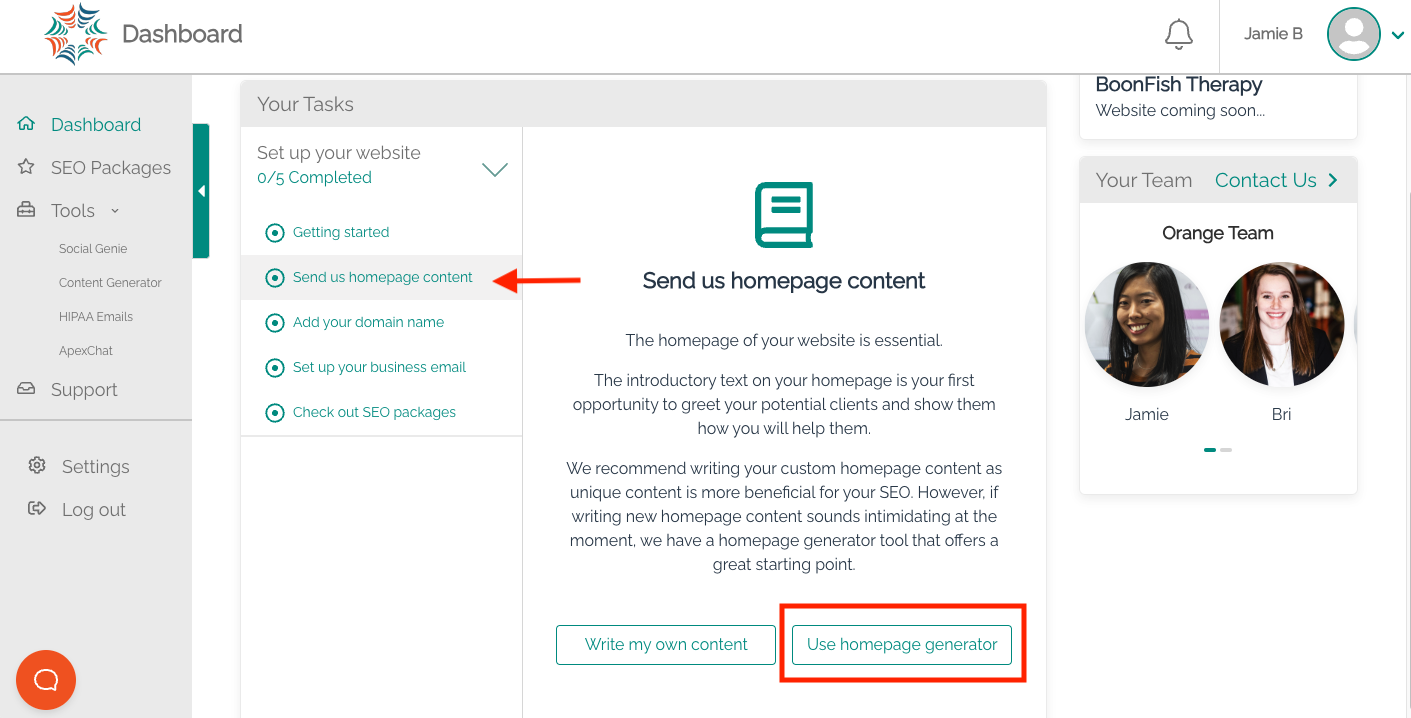
Step 3: Fill out the information as needed.
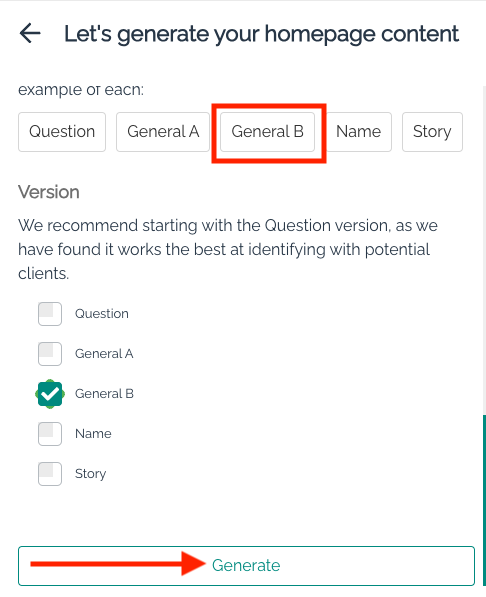
Step 4: There are 5 versions that you can choose from and view. Clicking on each tab will open up the content in a new window.
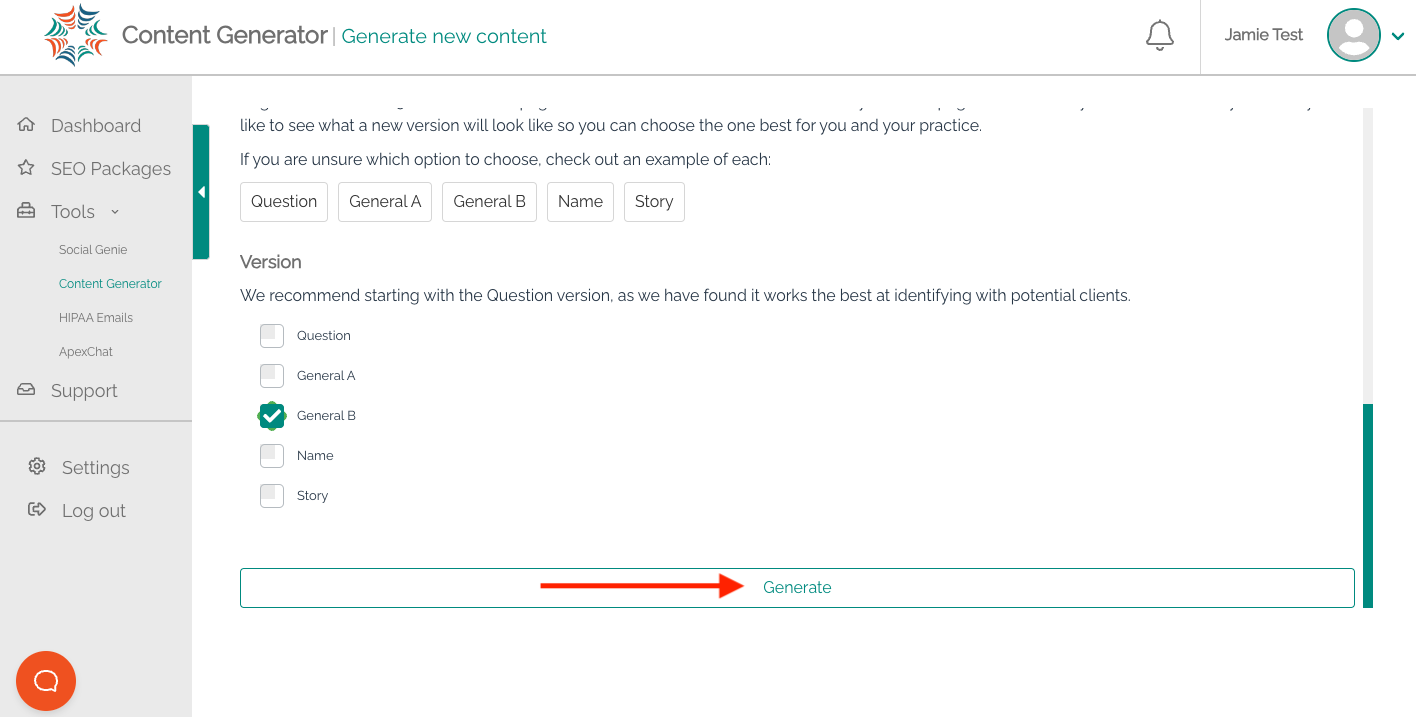
Step 5: Select the version you like best and then select the "Generate" button.
Step 6: You can preview your selected option and then send your new Homepage content to your team.
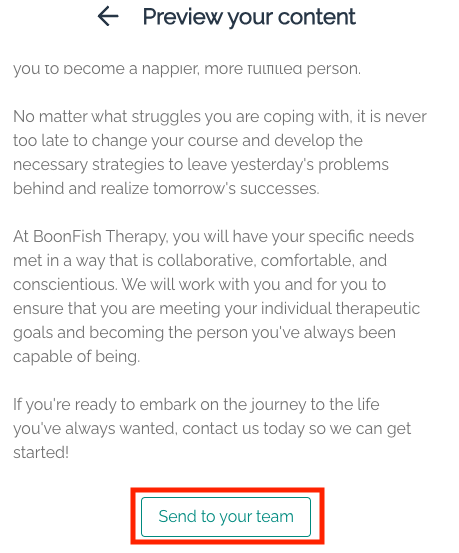
Viewing homepage content options again
Step 1: Log into the Dashboard by clicking on the link here.
Step 2: Once logged in, select the Content Generator option on the left-hand side.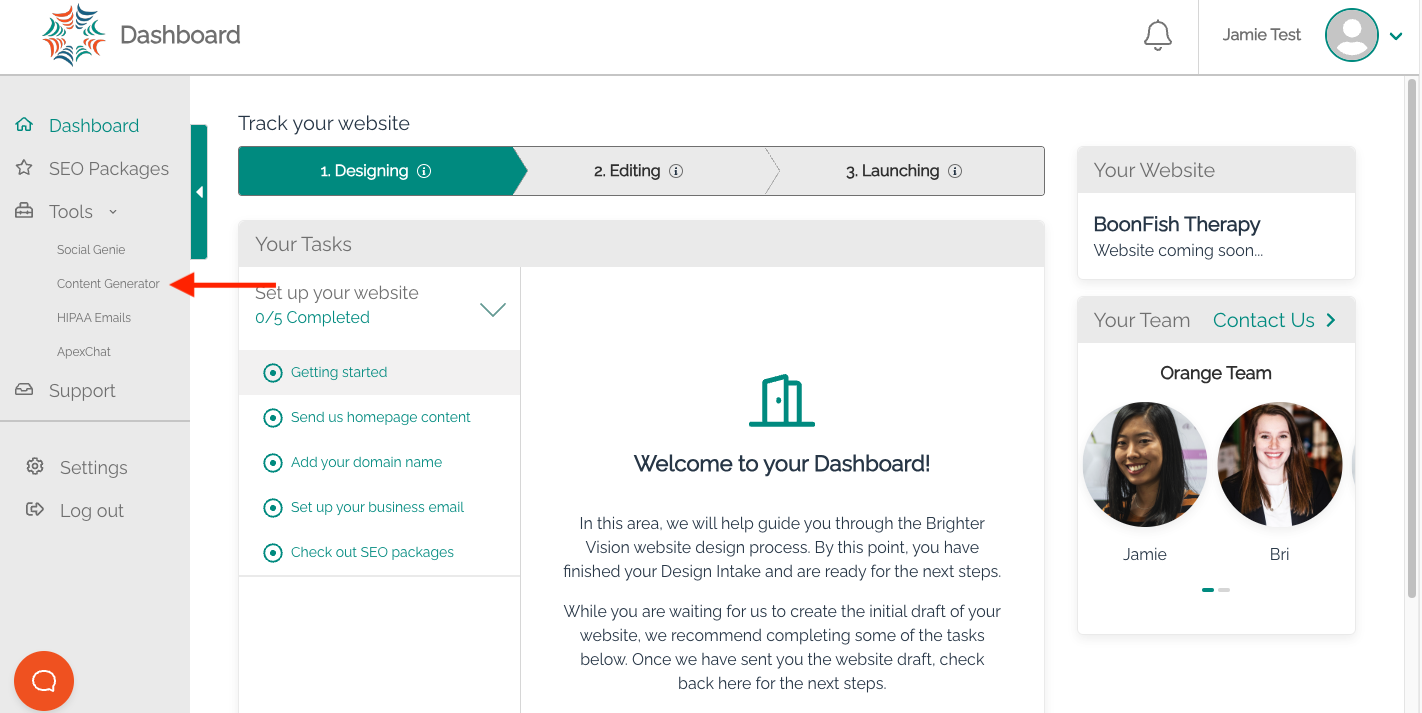
Step 3: Fill out the information as needed.
Step 4: There are 5 versions that you can choose from and view (content will open into a new window).
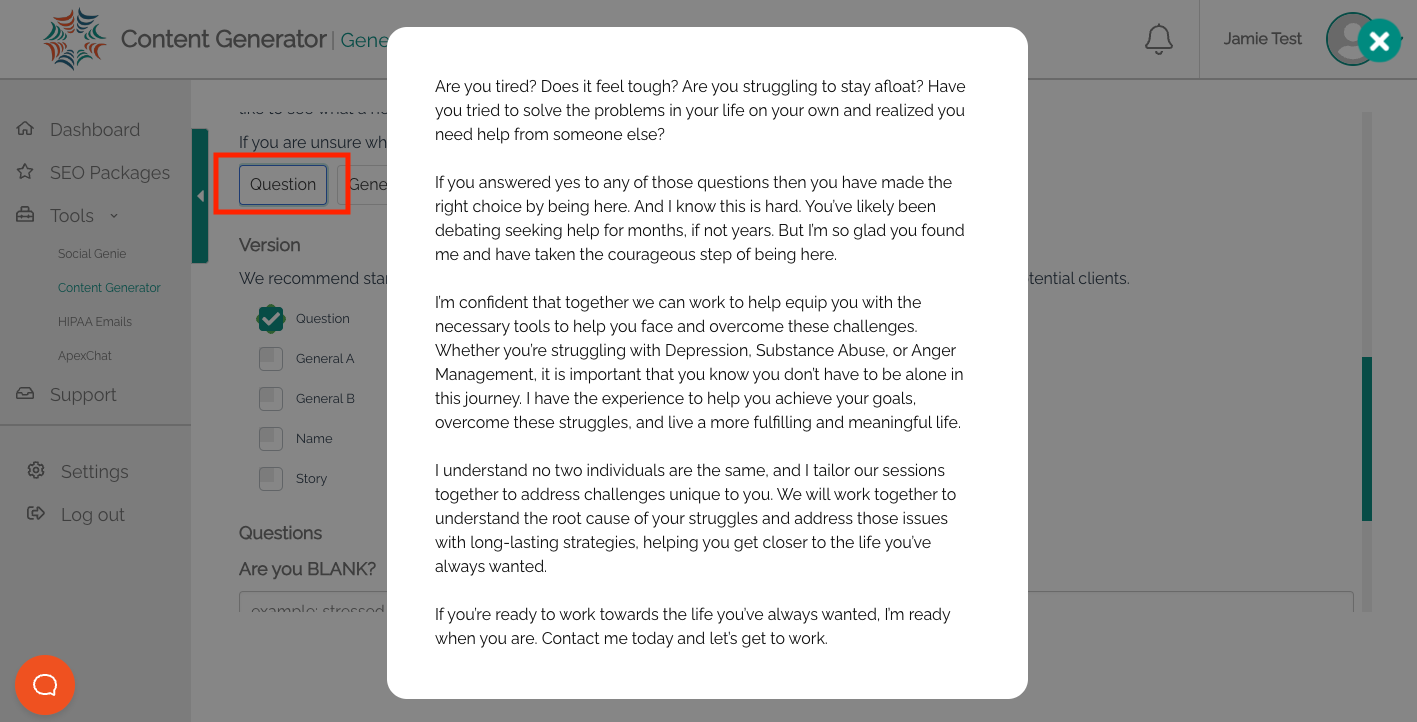
Step 5: Click on the "x" to close the window and view other options. Once you have selected the homepage version you like, select the "Generate" button at the very bottom of the page.
Step 6: You then have the option to "copy content to clipboard", or you can go back to view the homepage generator options again.